


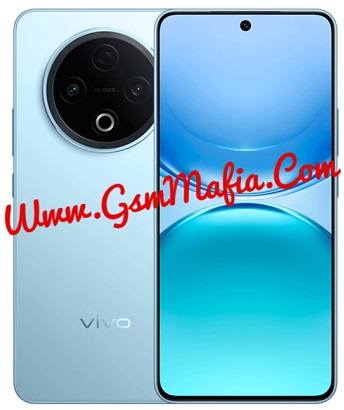
Download Vivo Y500 PD2558F Flash File Firmware Official Rom used for fix brick condition, hang on logo, corrupted device and all other software problems and flashing of stock rom remove root sign from device. Download Vivo Y500 PD2558F Latest Flash File, Flash tool and driver from links given below. Read all flashing instructions before flashing the phone.
Download Vivo Y500 PD2558F Flash File:
- PD2558F_EX_A_16.0.8.6.W20.V000L1_vivo
- UPGRADEDOWNLOAD TOOL (Password : gsmmafia)
- SPD Driver
WhatsApp me for flashing (Paid) +917017426154
About Vivo Y500
Vivo Y500 is Powered by Unisoc T7300 (6 nm) Latest Chipset (CPU). It comes with 4GB and 8GB of RAM. Vivo Y500 come with 8100mAh non-removable battery and fast charging. Vivo Y500 runs OriginOS 6 is based on Android 16 and packs 64GB and 128GB of inbuilt storage and phone have dedicated SD card slot to extend device storage.
Pre-requisites before flashing Vivo Y32
Battery should be charged up to 70%
Make sure you have Vivo USB OG Cable
Download and install SPD Flash Tool in PC
Download And install drivers in your pc
Obviously knowledge of flashing.
The Advantage Of Stock ROM:
- Flash Stock ROM to unbrick your Vivo Y500
- Flash Stock ROM to fix the boot loop problem
- Upgrade And Downgrade Vivo Y500
- Unroot and fix bugs on your phone
- To fix the lag or Stutter on your Vivo Y500
- By flashing Stock ROM, you can solve software problems
- Revert back to Stock to gain your warranty.
How To Flash Vivo Y500 PD2558F Using Upgrade Download Tool :
- Download and install Spreadtrum Driver in your computer. if in case Spreadtrum drivers are already installed on the computer, skip the step.
- Download and extract Vivo Y500 PD2558F Flash File.
- Download, Extract and Open Upgrade Download Tool Folder and run Upgrade Download.exe.
- Once Upgrade Download Tool is Launched, Select Vivo Y500 PD2558F.PAC from Flash file folder.
- Click on Start button And connect your phone (once Upgrade Download Tool detect your phone flashing will start automatically)
- After flash complete disconnect your device and reboot
- All done.
Coution: Flashing Your device using Upgrade Download tool may wipe/delete the device’s data. Therefore, we aren’t not responsible for any data loss on the device. Backup your data first.
If you facing any problem in file or flashing your device, Contact us here